How-to guides
Create tasks & recurring chores
Add one-off and recurring work with assignments, due dates, and areas.
The /tasks screen (Tasks & Chores) is the shared to-do list for your space: one-off jobs, recurring upkeep, and the open pool that anyone can claim. This recipe covers creating tasks and chores, claiming and completing them, and where they surface.
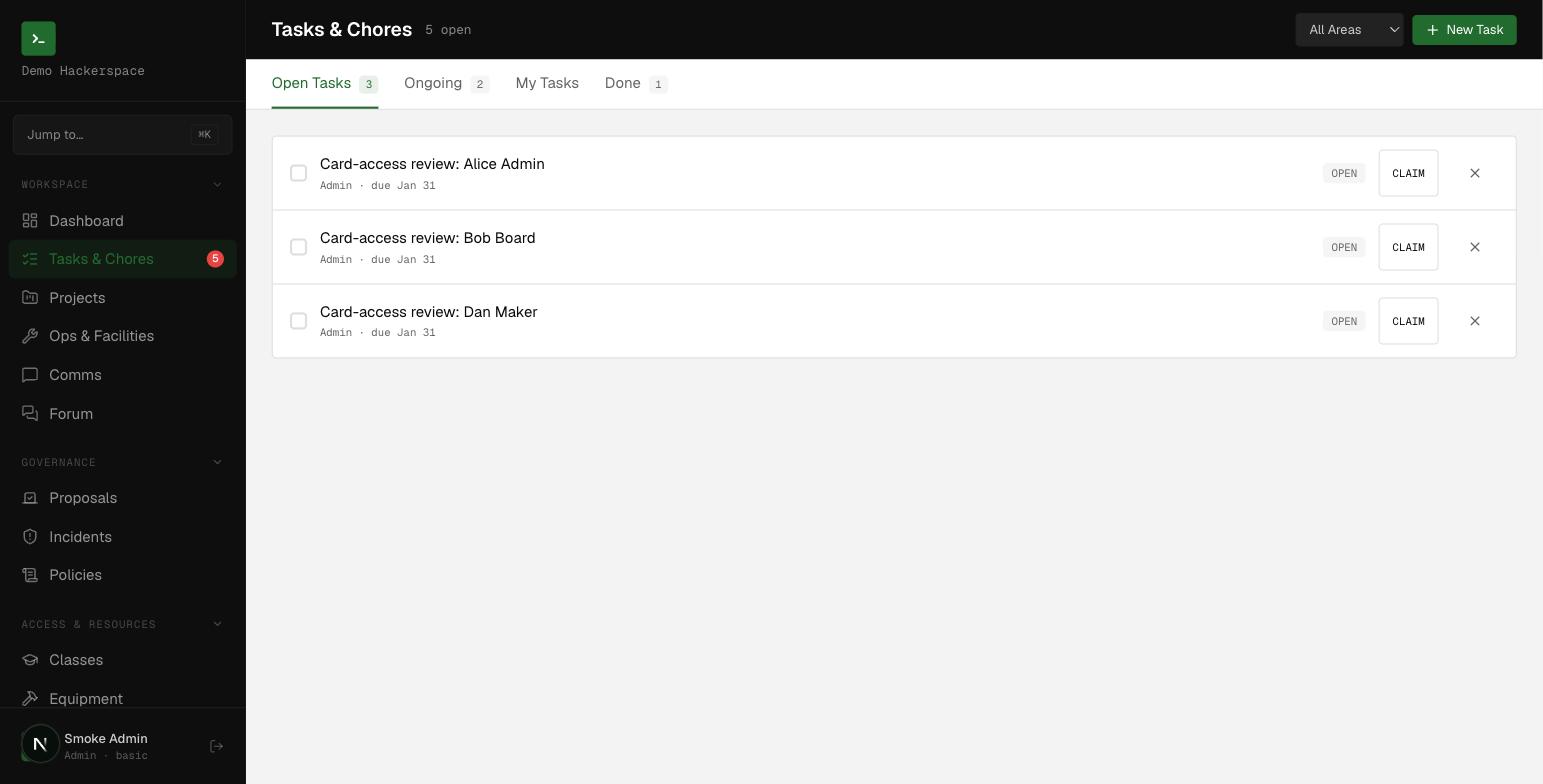 Tasks and Chores, split across Open, Ongoing, My Tasks, and Done tabs.
Before you start
Creating, claiming, completing, and deleting tasks is not a permission-gated action. Any active member (status current, late, or unverified) can do all of it, so this screen works even for members still pending approval. There is no separate manager role for the task list.
Area tags come from the areas you defined for your space. If you have not set those up yet, see Customize your space; until then the form falls back to a built-in default list (3D Printing, Electronics, Woodshop, Laser, Metal Shop, Facilities, Admin, Kitchen, General).
Create a one-off task
- Open /tasks and click New Task (top right).
- Enter a Title (required, up to 200 characters) and an optional Description.
- Leave Type set to
Taskfor a normal one-off job. - Optionally pick an Area and a Due Date.
- Leave Recurrence on
none. - Click Create Task.
The task is created with status open and records you as the requester. It joins the open pool for anyone to claim. The create form does not include an assignee, so tasks are claimed rather than handed out; the "assigned to" label only appears on tasks that already carry an assignee.
Create a recurring chore
- Click New Task and fill in the title as above.
- Set Type to
Choreto mark it as routine upkeep. - Set Recurrence to
daily,weekly,biweekly, ormonthly. - Optionally set an Area and Due Date, then click Create Task.
Any recurrence other than none moves the item to the Ongoing tab and it displays as, for example, "weekly recurring".
Claim and complete work
- On an
opentask, click CLAIM. The status becomesclaimedand your name shows as the claimer. - When the work is finished, click DONE on a task you claimed. The status becomes
completedand the completion time is recorded (this also stampslast_done_at, so recurring chores keep a record of when they were last done).
You can only mark DONE on tasks you claimed yourself. Use the X on any row to delete a task.
The tabs and statuses
The /tasks screen has four tabs:
- Open Tasks: open, non-recurring items in the pool.
- Ongoing: open recurring chores.
- My Tasks: open tasks claimed by or assigned to you.
- Done: completed items.
The underlying task_status values are open, claimed, in_progress, overdue, due_today, completed, done, and blocked. Creating sets open, claiming sets claimed, and completing sets completed; the remaining values (in_progress, blocked, and the date-driven overdue / due_today) are used for display and reporting.
Where tasks appear
Open tasks also surface on your /dashboard: the Quick Chores widget lists open items with a CLAIM shortcut, and the Open Tasks stat shows the current count plus how many are overdue. The Quick Task button jumps straight to /tasks.
Related
- Customize your space to define the areas used as task tags.
- Getting started for a tour of the rest of the platform.