How-to guides
Write ops docs & store secrets
Author knowledge base entries and keep credentials in the encrypted vault.
The Ops & Facilities hub at /ops is where your space keeps its operational memory: how-to articles, repeatable processes, who owns which area, and the credentials that run the building. This recipe walks you through writing each kind of entry and storing a credential safely in the encrypted vault.
The screen has four tabs: Knowledge Base, Processes, Secrets & Credentials, and Area Leads. Every current member can read and author the first two. Secrets and area leads are restricted, as noted below.
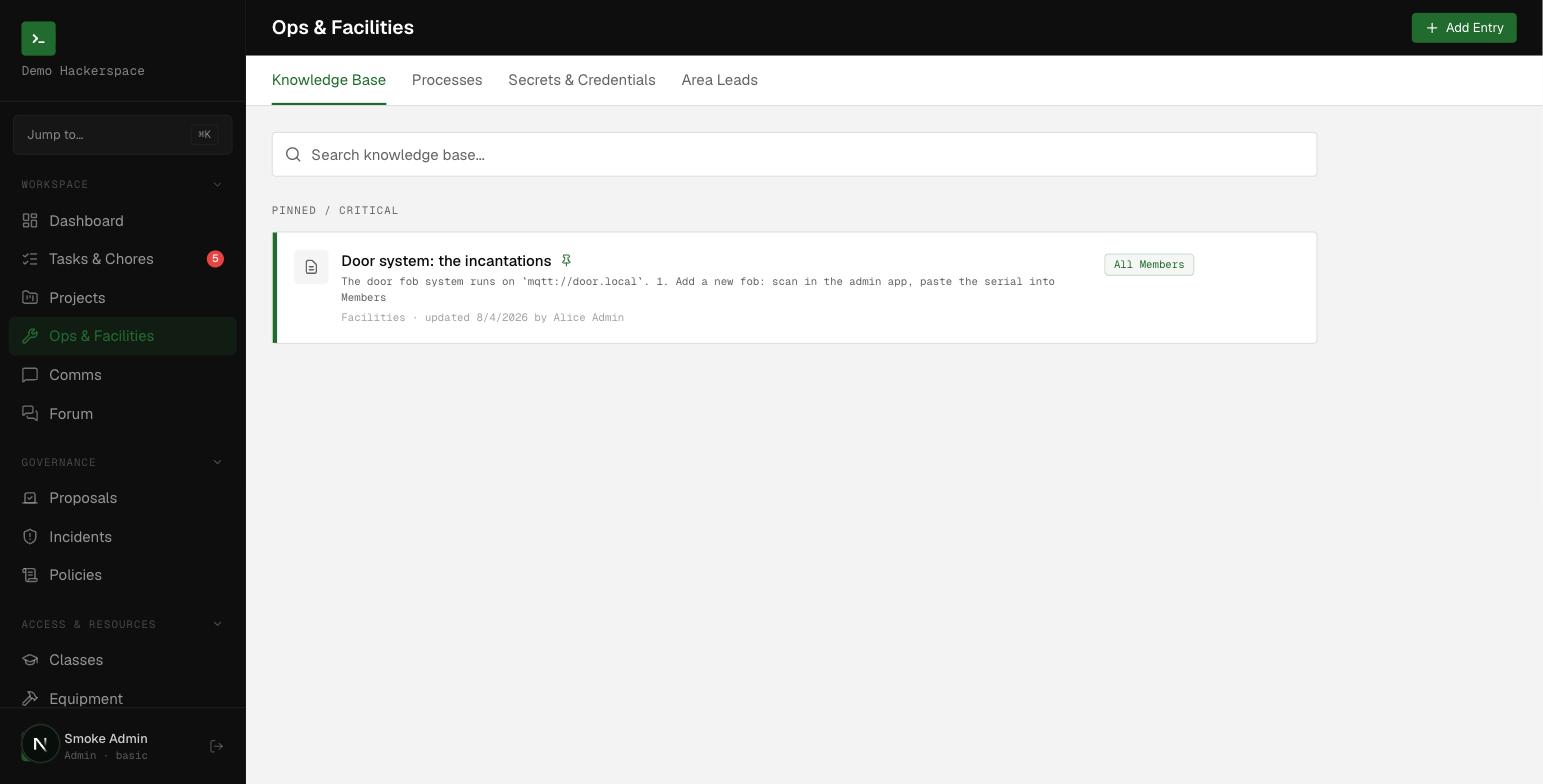 Ops and Facilities, with tabs for Knowledge Base, Processes, Secrets and Credentials, and Area Leads.
Write a knowledge base entry
Any current member can add an article; there is no separate authoring role.
- Open /ops and stay on the Knowledge Base tab.
- Click Add Entry (top right).
- Fill in the fields:
| Field | Required | Notes |
|---|---|---|
| Title | Yes | Up to 200 characters (for example, How to open the space). |
| Content | Yes | The article body, up to 50,000 characters. |
| Area | No | A free-text label (for example, Woodshop, Kitchen). |
| Visibility | Yes | Who may read it. Defaults to All Members. |
| Pin | No | Marks the entry critical so it stays at the top. |
| Tag as Process | No | Moves the entry to the Processes tab. |
- Click Create Entry.
Set who can read it
The Visibility dropdown maps to the kb_visibility values in the database:
- All Members (
all_members): every member can read it. This is the default. - Board Only (
board): restricted to board members. - Admin Only (
admin_only): restricted to admins.
Visibility controls reading, not authoring. Set it deliberately for anything sensitive, since the default is All Members.
Add a process
A process is just a knowledge base entry tagged process. It lives on the Processes tab so step-by-step procedures stay separate from reference articles.
- Open the Processes tab and click Add Entry.
- Fill in Title and Content as above.
- Check Tag as Process before saving.
The entry now appears under Processes and is filtered out of the Knowledge Base list. Uncheck the tag to move it back.
Assign an area lead
Area leads record who owns each space, station, or zone. Adding, editing, and removing leads requires the admin or board role.
- Open the Area Leads tab and click Add Area Lead.
- Fill in the fields:
| Field | Required | Notes |
|---|---|---|
| Area Name | Yes | The area this person owns (for example, Woodshop). |
| Member Name | Yes | The lead's name or handle (for example, Alice Smith). |
| Contact Info | No | How to reach them (for example, an email or Slack @alice). |
- Click Add Lead.
Store a credential in the vault
The Secrets & Credentials tab is an encrypted vault for shared credentials: WiFi passwords, alarm codes, vendor logins, and door controller passwords. The connect a door recipe expects the controller's shared password to live here, then references it from the connection.
What the vault needs
Encryption uses AES-256-GCM with a master key read server-side from the SECRETS_ENCRYPTION_KEY environment variable (64 hex characters, generated with openssl rand -hex 32). The key never reaches the browser; the server encrypts each value before storing it. If the key is missing, the value is stored unencrypted as a fallback, so confirm it is set before trusting the vault. See the security model for how the crypto and access layers fit together.
Who can add and reveal
- Add or edit a secret:
adminorboardonly. The Add Secret button appears only when you can see the tab. - Reveal a secret:
adminorboard, a holder of theops.secrets.readpermission, or anyone granted per-secret access through the Access editor. - Delete a secret:
adminonly.
If you lack access, the Secrets tab shows a lock and no values.
Add a secret
- Open the Secrets & Credentials tab and click Add Secret.
- Fill in the fields:
| Field | Required | Notes |
|---|---|---|
| Label | Yes | What the credential is (for example, WiFi Password). |
| Area | No | An optional grouping (for example, Network). |
| Secret Value | Yes | The credential itself, up to 5,000 characters. |
- Click Save Secret. The value is sent to the server, encrypted, and never written to the browser in plaintext.
Reveal a secret
The list shows only each secret's label and area; the value stays hidden until you ask for it.
- Find the secret and click Reveal. The server decrypts it on demand and returns the plaintext just to you.
- Use Copy to put the value on your clipboard.
- The value re-hides after 30 seconds, and immediately if the window loses focus (for example, during a screen share). Every reveal is written to the activity log.