How-to guides
Import members from a spreadsheet
Bulk-add members by pasting rows, with tiers and statuses.
Bring an existing roster into your space in one pass. The /import screen (titled Import & Sync) reads a CSV, lets you map its columns to member fields, previews the result, and upserts everyone into /members with a tier and a status.
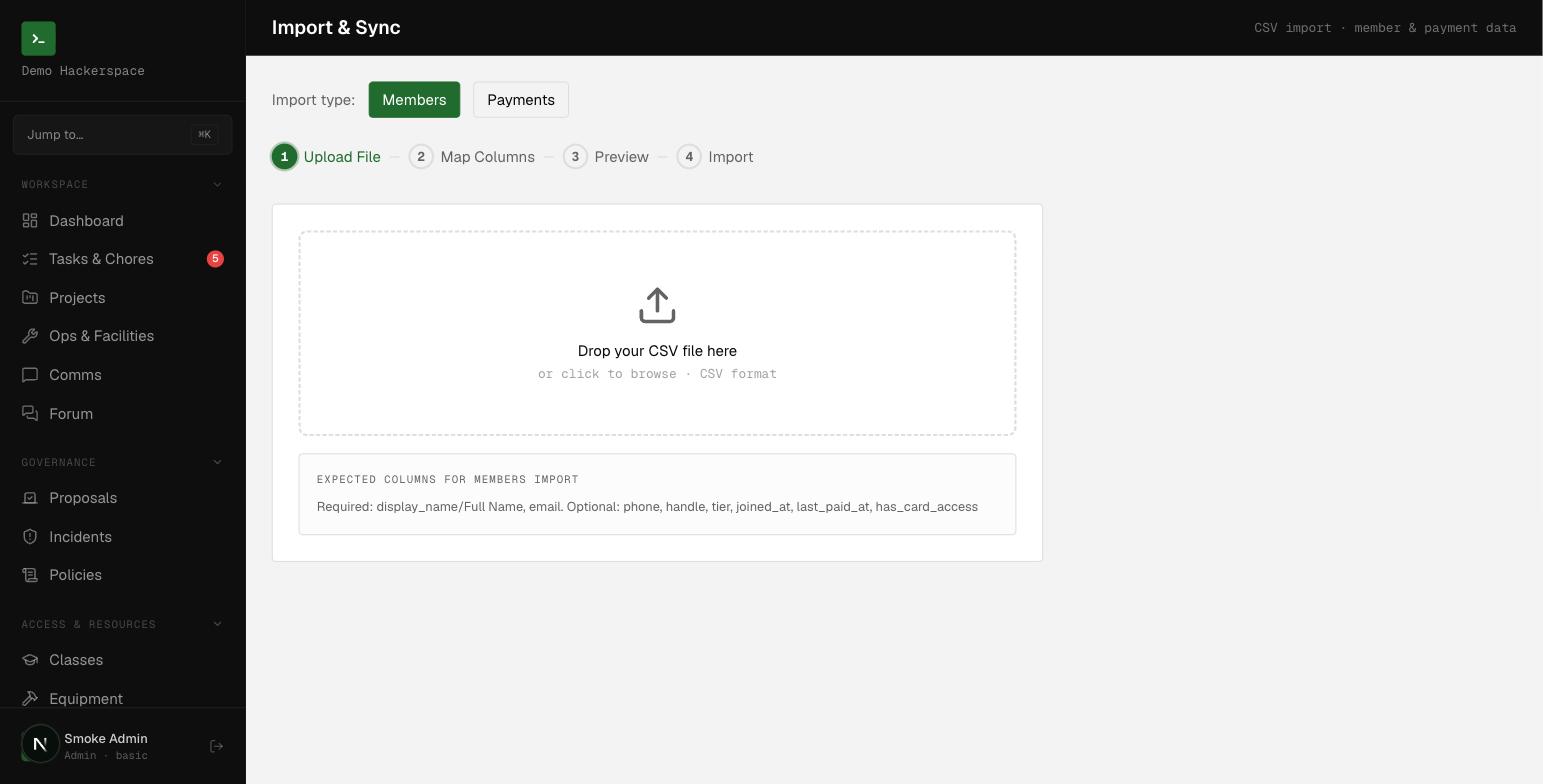 The Import and Sync screen: a four-step wizard (upload, map columns, preview, import) for members or payments.
Before you start
- Role required: the Import & Sync screen opens for admin, board, and treasurer. The member import itself is gated tighter, the server action accepts only admin or board. A treasurer who runs a member import gets
Admin access required. - File format: a
.csv(or.txt) file. There is no paste box, you upload or drag-and-drop a file. Quoted fields and embedded commas are handled. - Row limit: 5000 members per import.
- One row per member; the first row must be a header row.
Columns
Only two columns are required. Header names are auto-detected on upload, so sensible names map themselves; you can override any mapping in the next step.
| App field | Required | Notes |
|---|---|---|
| Display Name | Yes | Non-empty, max 100 chars |
| Yes | Must be a valid email; lowercased on import; the dedup key | |
| Phone | No | Max 20 chars |
| Tier / Membership Type | No | Normalized to plus, basic, or associate (see below); defaults to basic |
| Join Date | No | Any parseable date; defaults to the import time if blank |
| Last Paid Date | No | Any parseable date |
| Card Access | No | yes/true/1/y becomes true; anything else false |
The mapping dropdown also offers Handle / Username, but that column is not written to the member record, leave it on Skip this column or don't rely on it.
Tier values are matched loosely and collapsed to the three real tiers:
| Your value | Stored tier |
|---|---|
plus, premium, full | plus |
basic, member, standard | basic |
associate, visitor, guest | associate |
| anything else | basic |
Steps
- Go to /import. Leave the Import type toggle on members.
- Drop your CSV onto the upload area, or click to browse. The wizard advances to Map Columns and shows the row count.
- Check each column's mapping. Your header sits on the left with a sample value; pick the matching app field on the right, or Skip this column. Required fields are marked with
*. If Display Name or Email is unmapped, a warning lists them and Preview Import stays disabled. - Click Preview Import. Review the first 5 rows as they will land, then click Import N rows.
- On the results screen, read how many imported and how many failed. Up to 10 per-row errors are listed. Click Import Another File to start over.
What each imported member gets
Every valid row is upserted into space_members with these fixed defaults:
| Field | Value |
|---|---|
role | member |
status | current |
approved | true |
user_id | left empty (an offline member with no login) |
Imported members start as current and unlinked to any login account. They link a login later by signing up with the same email or being invited.
Edge cases
- Re-importing updates, not duplicates. Rows upsert on
(space_id, email). Importing an email that already exists in your space overwrites that member's mapped fields, a safe way to bulk-update. Rows with no matching email are inserted new. - Bad rows are skipped, not fatal. Each row is validated individually (invalid email, missing name, unknown tier, or unparseable date). Skipped rows are counted and reported; the rest still import.
- A row missing name or email is dropped before the server call and reported as
Row N: missing name or email(N is the spreadsheet row). - Card access is granted in the record only. Importing
has_card_accessmarks the flag; it does not program a physical door card or card reader.
Importing payments instead? The same /import screen has a payments mode with its own required columns (amount, sender, date).