How-to guides
Run a proposal to a vote
Open a proposal, set quorum and threshold, and record the outcome.
Proposals give your space an auditable, async way to decide things: a member drafts a question, opens it for voting, members record a position, and the app computes quorum and pass/fail for you. This recipe walks the full lifecycle from draft to decided.
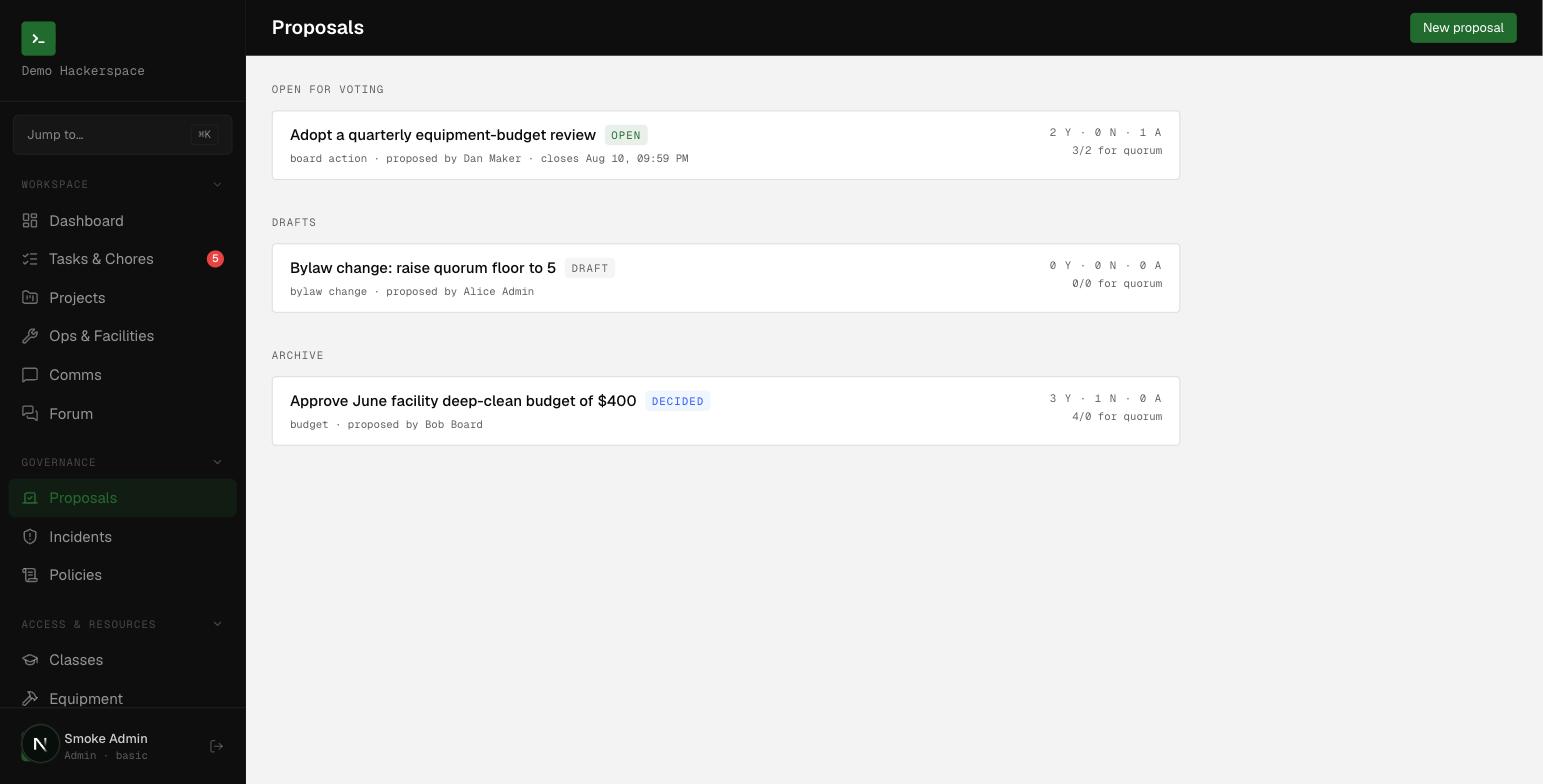 The Proposals screen groups items into open for voting, drafts, and archive, each with a live tally.
Before you start
- Any current member can create a proposal and open it for voting. A member whose status is still
unverified(pending approval) cannot create, open, or vote. - Only an
adminorboardmember can mark an open proposal decided. A proposer can withdraw their own proposal only while it is still a draft; anadminorboardmember can withdraw a draft or an open proposal. The Withdraw button also appears to the proposer on an open proposal, but clicking it there is a silent no-op, row-level security blocks the change and no error is shown. - Quorum and the voting window are not entered per proposal. They are computed from your space's governance defaults at the moment voting opens. You choose only the pass threshold.
Create the proposal
-
Go to /proposals and click New proposal (this opens /proposals/new).
-
Fill in Title and Body. The body accepts Markdown and is rendered on the detail page.
-
Pick a Type. This is a label describing the kind of decision:
Type Use for advisory_pollNon-binding sense of the room (the default) board_actionA specific action for the board to take membership_voteA decision put to the membership bylaw_changeAmending a policy or bylaw budgetSpending or budget approval recallA vote of confidence / recall -
Pick a Threshold to pass. This sets how the yes/no split is judged when the proposal is decided:
Threshold Passes when simple_majorityYes votes exceed no votes two_thirdsYes is at least two-thirds of yes+no three_fourthsYes is at least three-fourths of yes+no unanimousNo "no" votes and at least one "yes" -
To go straight to voting, tick Open voting immediately. Its label notes that quorum and the voting window come from space defaults. Leave it unchecked to save a draft you can open later.
-
Click Save proposal. You land on the proposal's detail page.
Open voting
If you saved a draft, open it when you are ready. On the proposal page under Manage, click Open for voting. At that moment the app:
- counts your active members and computes
quorum_requiredfrom the space's default quorum percent (with a floor), and - sets the voting window using the default window length (shipped default is 216 hours, or 9 days) unless you supplied a close time.
Once open, the proposal moves to the Open for voting section on /proposals and shows its close time.
Let members vote
While voting is open, every member sees a Cast your vote panel with four positions: yes, no, abstain, recused. Choosing recused requires a recusal reason. A public Comment is optional. Members can change their vote until the window closes; votes are never deleted. All votes and voter names are visible to the space for transparency.
The Tally section updates live: yes / no / abstain / recused counts, plus a quorum bar showing votes counted against quorum_required and whether quorum is met. Quorum counts yes, no, and abstain; recused votes do not count toward quorum.
Record the outcome
When the discussion has run its course, an admin or board member clicks Mark decided under Manage. This freezes the tally, stamps the decision time, and sets the outcome. The proposal page then shows PASSED or DID NOT PASS, and it moves to the Archive section on /proposals.
A proposal passes only if quorum was met and the threshold you chose is satisfied on the yes/no split (abstentions do not count toward the threshold). If quorum was never met, the result is DID NOT PASS regardless of the vote split.
Related
- Governance model, why proposals, incidents, and policies are built together.
- Governance reference, every enum, field, and status.