Tutorials
Track dues, end to end
Add a pay-here link, import a payment, and reconcile it to a member.
In this tutorial you will set up an external pay-here link, watch a member pay through it, then record that payment and reconcile it to the member so their dues advance. By the end you will have taken one dues payment all the way from "add a link" to a member marked current.
You will use three screens: /settings to add the link, /import to record the payment, and /payments to reconcile it.
Before you start
You need the right role for each part:
| Task | Required role |
|---|---|
| Add or edit a pay-here link | admin (the Settings screen is admin-only) |
| Import and reconcile payments | admin, board, or treasurer |
This example uses Venmo, but PayPal and Zeffy work exactly the same way.
Step 1: Add a pay-here link
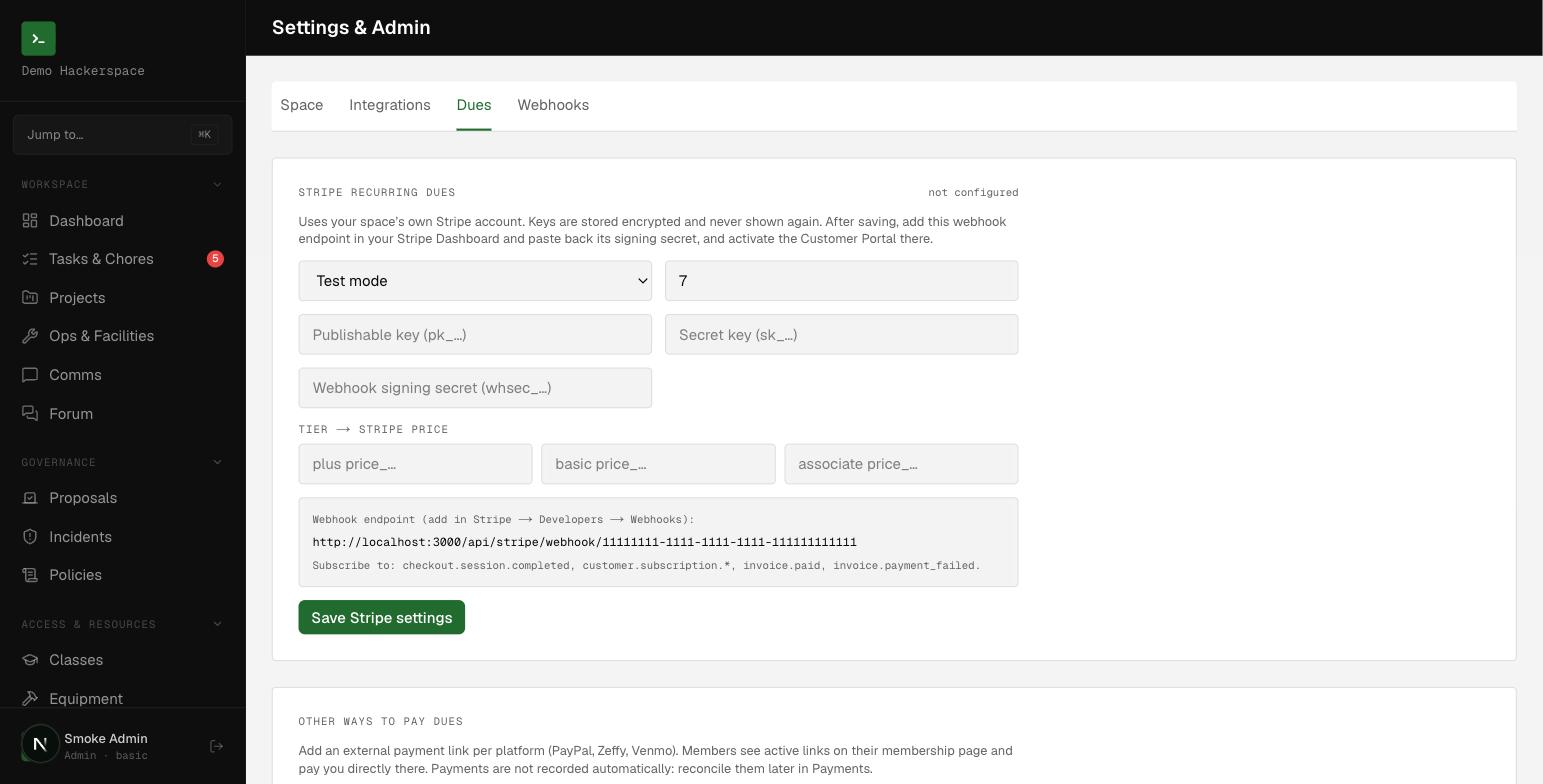 The Settings Dues tab: Stripe recurring dues up top, external pay-here links below.
- Go to /settings and open the Dues tab.
- Under Other ways to pay dues you will see a card for each platform: PayPal, Zeffy, and Venmo. Find the Venmo card.
- Paste your payment link into the URL field. It must be an absolute
https://URL, anything else is rejected. - Optionally add an instruction, for example
Put your member name in the note. This is a hint that helps you match the payment later. - Leave the toggle set to shown so members can see it.
- Click Save.
The link is now live for your space. You can add all three platforms, and hide any one later by flipping its toggle to hidden.
Step 2: The member pays externally
There is nothing for you to do here, this is what the member sees.
- The member opens their /me page and looks at the Dues section.
- While they still owe dues, the card shows your active links under Other ways to pay (or Pay your dues if your space has no card billing set up).
- They click Pay with Venmo, which opens your external payment page in a new tab, and they pay you there, adding their name in the note if you asked them to.
The platform does not record this payment automatically. That is the next step.
Step 3: Record the payment
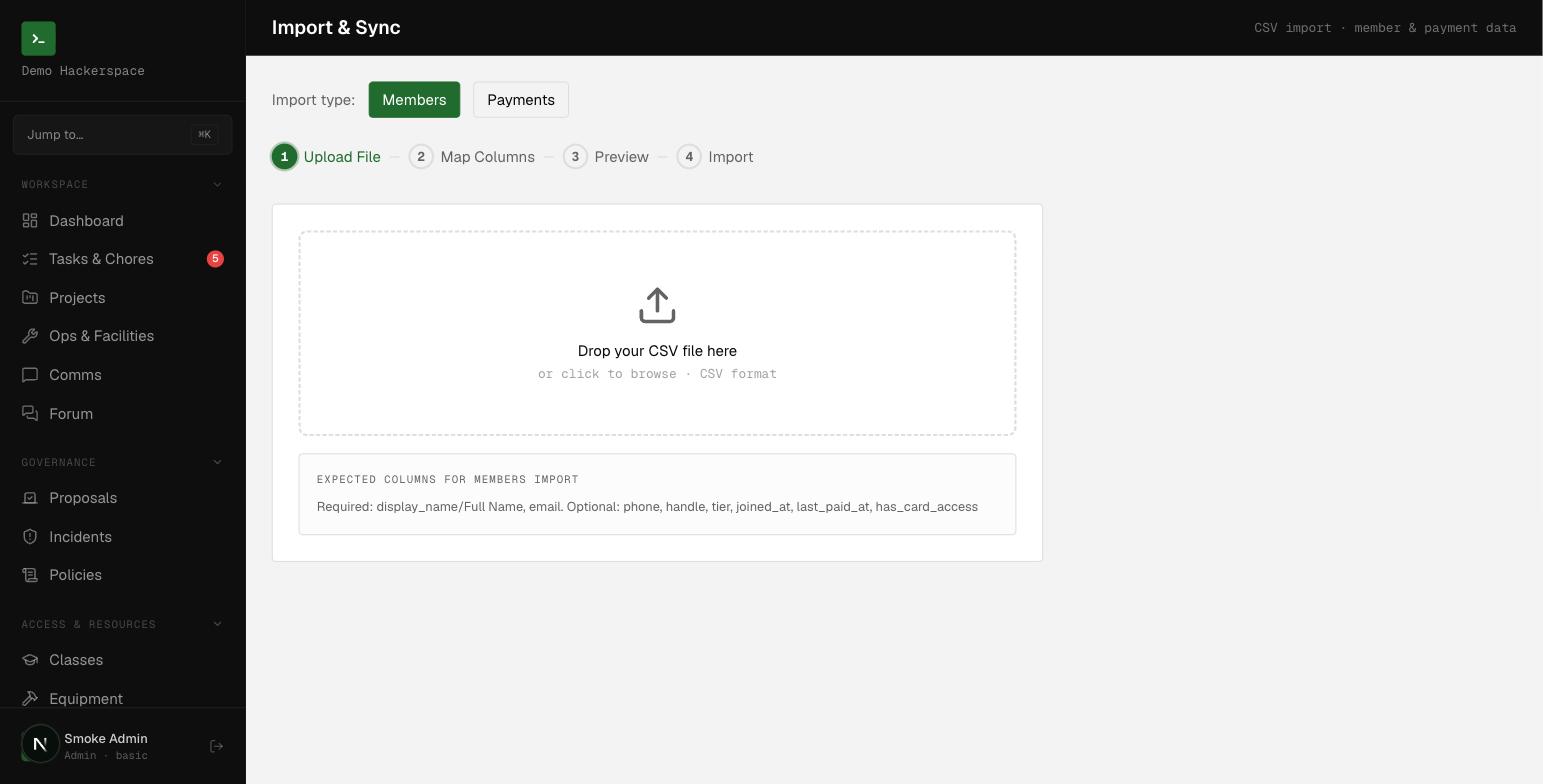 The Import and Sync screen: pick Payments, drop a CSV, then map columns, preview, and import.
When your Venmo activity is available, export it as a CSV and import it.
- Go to /import and switch the Import type to Payments.
- Upload your CSV file by dropping it on the upload area or clicking to browse.
- On Map Columns, confirm the required fields are mapped: Amount, Sender / From Name, and Date. Set the Platform column to
venmoso the payment is tagged correctly, and map the note column if you have one. - Click Preview Import, review the first few rows, then click Import.
Every imported row lands as an unlinked payment. Rows with a bad amount, platform, or date are skipped and counted, so nothing invalid is silently added.
Recording a single hand-received payment instead? Use the Log Cash button on /payments, but note it always records the platform as
cash.
Step 4: Reconcile the payment to the member
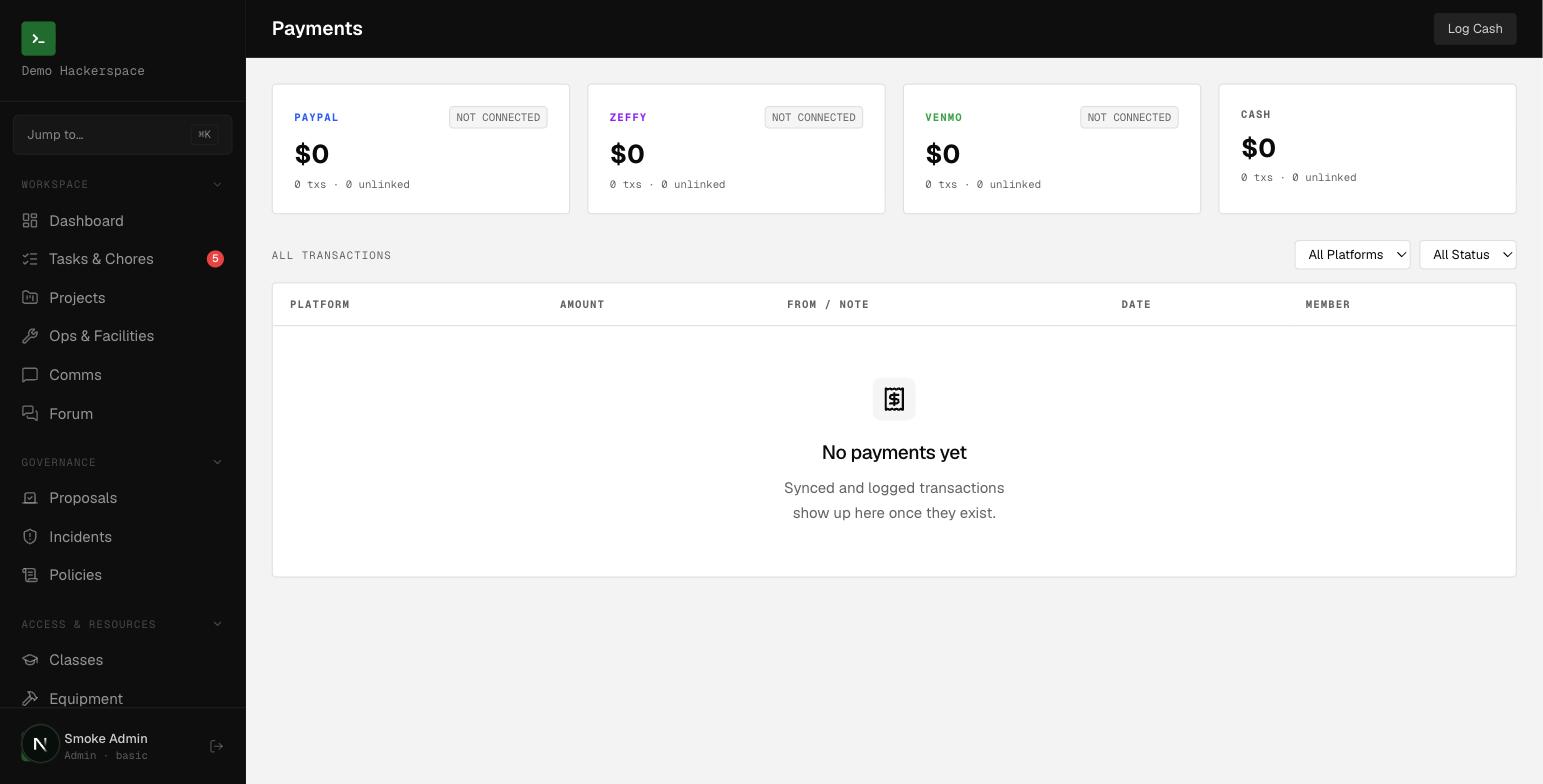 The Payments ledger: one summary card per platform above the transactions table.
- Go to /payments. The header shows a count like 1 unlinked whenever payments still need a member.
- Find your Venmo row. You can narrow the list with the All Platforms and All Status filters at the top of the transactions table.
- Click + Link member on that row.
- In the Link to Member dialog, pick the member who paid.
The row flips to linked and shows the member's name with a check mark.
Step 5: Confirm the dues advanced
Linking a payment does two things automatically:
- It advances the member's last paid date to the payment's date.
- It sets the member's status to
current, as long as this payment is the most recent one on file for them.
This is advance-only: recording an older or backdated payment never moves a member's dues backward. If the member already has a newer payment recorded, linking an older one leaves their status untouched.
To verify, open the member on /members and check their status, or have the member reload /me, where the payment now appears under My payments.
What you did
You added an external pay-here link, a member paid through it, you imported the payment as an unlinked row, and you reconciled it to the member, advancing their dues to current. Repeat Step 3 and Step 4 whenever new external payments come in.